

PH90 Deposit – How to Deposit in PH90 via GCash and Maya
Introduction to PH90 Deposit
PH90 Deposit is the process of adding funds to a PH90 account, allowing users to access and enjoy the platform’s online entertainment services. With two popular Philippine e-wallet payment methods, GCash and Maya, users can choose a convenient payment option based on their preferences.
Instead of going through complicated procedures, the PH90 Deposit process is designed around clear steps, including logging into an account, selecting a payment method, entering the deposit amount, and confirming the transaction.
The most important part of making a deposit is verifying the recipient’s information, transaction amount, and payment status before completing the process. Users should also review the applicable transaction conditions and legal age requirements before using the platform.
Available Deposit Methods on PH90
PH90 aims to provide a convenient payment experience through familiar digital wallets commonly used in the Philippines. Among these options, GCash and Maya are two widely recognized payment services.
| Features | GCash | Maya |
|---|---|---|
| Payment Type | Digital Wallet | Digital Wallet |
| Payment Process | Through the GCash application | Through the Maya application |
| Confirmation | Based on GCash transaction status | Based on Maya transaction status |
| Processing Time | Depends on system confirmation | Depends on system confirmation |
| Important Note | Verify recipient and amount | Verify payment information |
Note: These payment methods should only be used when they are actually available in the official PH90 payment section. Processing times and transaction limits depend on the platform’s actual announcements and the respective e-wallet providers.
3. How to Deposit on PH90 Using GCash
GCash is one of the most popular digital wallets in the Philippines, supporting various online payment transactions. If PH90 displays GCash as an available deposit option, users can follow the steps below.
Step 1: Log In to Your PH90 Account
Visit the official PH90 Casino website and log in using your registered account credentials. Once logged in, verify your account information to ensure that you are using the correct profile.
Step 2: Access the Deposit Section
Find and select the Deposit option in your account dashboard. The system will display the available payment methods.
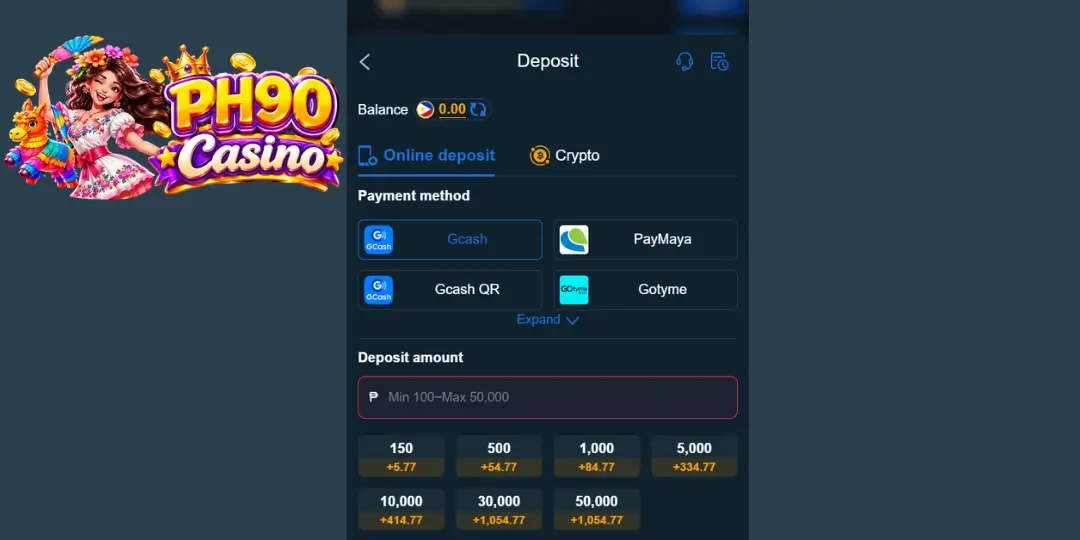
Step 3: Select GCash as Your Payment Method
Choose GCash if this option is currently supported. Next, enter the amount you wish to deposit according to the minimum and maximum limits displayed by the system.
Step 4: Verify Your Payment Information
Before confirming the transaction, carefully review the following details:
- The amount you intend to deposit.
- The transaction reference or payment description, if required.
- The recipient information displayed by the official system.
- The GCash account you will use to complete the payment.
Never transfer money to personal accounts or payment details received from unverified sources.
Step 5: Complete the Payment and Check Its Status
Open the GCash application and complete the payment according to its official instructions. Once the transaction is successful, save your payment receipt and reference number.
Return to PH90 and check your Deposit history to verify the transaction status. Consider the deposit completed only when the system confirms the payment and updates your account balance.
How to Deposit on PH90 Using Maya
Maya is another widely used digital wallet in the Philippines. Its user-friendly interface and transaction management features allow users to conveniently monitor their payment activities.
If PH90 lists Maya as an available payment method, follow the instructions below.
Step 1: Log In to PH90
Open the official PH90 website, log in to your account, and access the balance management section.
Step 2: Select Deposit
Click the Deposit option to view the available payment methods. Select Maya if it is currently supported by the platform.
Step 3: Enter Your Deposit Amount
Enter the amount you wish to deposit according to the displayed minimum and maximum limits. Double-check the amount before proceeding.
Step 4: Complete the Payment Through Maya
Open the Maya application and complete the payment using the information provided through PH90’s official payment process.
Make sure the recipient information and payment amount match the displayed instructions. If a transaction reference is required, enter it correctly to help the system identify your payment.
Step 5: Confirm Your Transaction
After Maya confirms that the payment is successful, save your transaction receipt. Return to your PH90 account and review your Deposit history to verify the result.
Avoid creating another deposit request while your previous transaction is still awaiting confirmation.
PH90 Deposit Processing Time
Processing time is one of the most common concerns among users making a PH90 Deposit. In practice, the time required to complete a transaction depends on e-wallet confirmation, payment system availability, and the platform’s verification process.
The following table provides a general reference for understanding each transaction stage.
| Transaction Stage | Estimated Time | Status |
|---|---|---|
| Create Deposit Request | Around 1 minute | Initiating |
| GCash/Maya Payment | Depends on the application | Processing Payment |
| System Verification | A few minutes or longer | Pending Confirmation |
| Balance Update | After successful verification | Completed |
Important note about the 5-minute timeframe: Users can use five minutes as an initial checkpoint, but this should not be considered a guaranteed processing time for every transaction. If your balance has not been updated after five minutes, check the transaction status before contacting customer support.
How to Fix PH90 Deposit Problems When a Transaction Takes More Than 5 Minutes
Not every deposit is confirmed immediately. Connection issues, incorrect payment information, or temporary system delays may prevent your balance from being updated.
Below are some common problems and their recommended solutions.
Issue 1: Payment Completed but PH90 Balance Has Not Been Updated
This situation may occur when the e-wallet has recorded the transaction, but the receiving system has not completed its verification process.
How to fix it:
- Open GCash or Maya and check your transaction history.
- Verify whether the payment status shows successful.
- Save your transaction reference number and receipt.
- Log back into PH90 and check your Deposit history.
- If your balance remains unchanged, contact official customer support and request transaction verification.
Do not make a second payment until the status of the first transaction has been confirmed.
Issue 2: GCash Deposit Transaction Was Declined
Possible reasons include insufficient funds, transaction limits, invalid payment information, or application-related issues.
How to fix it:
- Check your available GCash balance.
- Review your transaction limits.
- Verify the recipient’s payment information.
- Check your Internet connection.
- Update the application if you are using an outdated version.
If the transaction continues to be declined, contact GCash through its official support channels.
Issue 3: Maya Cannot Complete the Payment
If Maya cannot process your transaction, check your account status, available balance, and any error notifications displayed in the application.
How to fix it:
- Check your Internet connection.
- Make sure the Maya application is working properly.
- Verify your available balance.
- Review your transaction limits and account status.
- Retry only after confirming that the previous transaction has failed.
Issue 4: PH90 Displays a Pending Deposit Status
Pending means that your transaction is awaiting processing or confirmation. This does not necessarily mean that the funds have already been credited to your account.
How to fix it:
- Avoid creating duplicate deposit requests.
- Keep your transaction reference number.
- Take a screenshot of the payment status.
- Check again after an appropriate waiting period.
- Contact official customer support if the status does not change.
Issue 5: Unable to Access the PH90 Deposit Page
If the deposit page does not load or continuously refreshes, try the following solutions:
- Refresh the PH90 website.
- Check your Internet connection.
- Log out and log back into your account.
- Clear your browser cache.
- Try accessing the website through another browser or device.
If the problem continues, contact customer support to verify the system’s current status.
Important Tips for Making a PH90 Deposit
To minimize payment errors, users should remember several important precautions when making a PH90 Deposit.
Verify Your Account Information: Always make sure you are logged into the correct PH90 account before creating a deposit request.
Never Share Your OTP: Do not disclose your password, OTP, or other security information to anyone claiming to be a customer support representative.
Keep Your Payment Receipt: Transaction references and payment records are important documents when verification is required.
Avoid Unverified Payment Instructions: Only use payment information displayed through official and verified channels.
Review Transaction Conditions: Carefully read the applicable limits, fees, promotional requirements, and payment conditions before confirming a transaction.
Conclusion
PH90 Deposit is an important part of the platform’s user experience, allowing users to manage their deposits through familiar digital payment methods such as GCash and Maya.
With step-by-step instructions, a processing time reference, and practical solutions for common payment issues, users can better manage their transactions and avoid unnecessary mistakes.
The most important things to remember are verifying payment information, keeping transaction receipts, and avoiding duplicate payments while an earlier transaction remains unconfirmed.
Always prioritize official payment and customer support channels, and make sure to comply with the applicable laws and platform requirements in your location.